Quick answer
A task availability notification should be small and private. RH Monitor can show status changes through the menu bar, local sounds, and optional low-information external notifications. It does not send task content, screenshots, account details, or browser URLs.
| Fit | Use this page to decide |
|---|---|
| Best for |
|
| Not for |
|
A small signal for availability
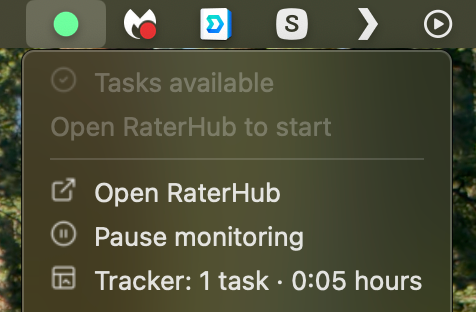
The main RH Monitor surface is the menu bar dot. It can indicate tasks available, no tasks, logout, sleep, and active-task timing states without showing sensitive work content.
That small signal is enough for most status awareness. You can open the app when you want details, but you do not need a dashboard staring at you all day.
Local sounds without noisy repeats
Tasks-available sound is designed to play on transition to available, not on every check. The default local sound is clean and simple, and custom sound files stay local on your Mac.
Task-ready sound is separate. It can play when the current task reaches its ready/due state, again as a passive local reminder rather than a task action.
Low-information external notifications
If you enable mobile or external notification targets, RH Monitor keeps the payload low-information: YES, NO, LOGOUT, or SLEEP. These labels are intentionally plain.
The app does not send task text, screenshots, URLs, cookies, account information, earnings, history, or notes as notification content.
What notifications do not mean
A notification does not mean RH Monitor created a task, reserved a task, or changed the queue. It only reflects an observed status state from your own setup.
This boundary keeps the feature useful for planning without making unsafe promises about availability.
Safe notification examples
A safe availability alert should be boring. “YES” can mean tasks appear available. “NO” can mean no tasks are visible. “LOGOUT” can mean the connection sees a signed-out state. “SLEEP” can mean your optional sleep-hours window is active.
Those labels are useful precisely because they do not reveal task content. If someone sees a lock-screen notification, they should not learn what task you were viewing, what account you use, how much you earned, or what your history contains.
This is also why RH Monitor separates availability alerts from task timing alerts. A task-available sound answers “should I look?” A task-ready sound answers “has my local timing threshold arrived?” Keeping those signals separate makes the notification system easier to control.
Comparison and decision table
| Notification type | What it can say | What it avoids |
|---|---|---|
| Menu bar dot | Visual status and timing color. | Task content and account details. |
| Local sound | Availability transition or task-ready cue. | Repeated noisy alerts on every check. |
| External status | YES, NO, LOGOUT, SLEEP. | Task text, URLs, screenshots, history, earnings. |
| Tracker dashboard | Local history after work. | Public or shared status feed. |
Trust signals and source of truth
RH Monitor’s SEO guides are written from the product’s actual feature boundary: private Mac menu bar status, local Tracker Pro history, paid vs actual time, earnings, CSV export, and no task-content storage.
FAQ
Can RH Monitor notify me when tasks are available?
Yes, it can show local status and optional alerts when the observed state changes to available.
Do notifications include task content?
No. External notifications are intentionally low-information and local sounds do not upload files.
Does RH Monitor repeat the available sound every check?
No. The available sound is intended for transitions to available, not every polling cycle.
Can notifications increase task availability?
No. They only report observed status.
Can I choose custom sounds?
Yes. Supported local custom files include AIFF, AIF, WAV, MP3, M4A, and CAF.