
Quick answer
A RaterHub time tracking spreadsheet is best when you need a simple manual record. Download the CSV, import it into Excel or Google Sheets, and track only work metadata. Do not put task content, task text, account details, or screenshots into your sheet.
| Fit | Use this page to decide |
|---|---|
| Best for |
|
| Not for |
|
Spreadsheet preview, XLSX, and Google Sheets-ready formulas
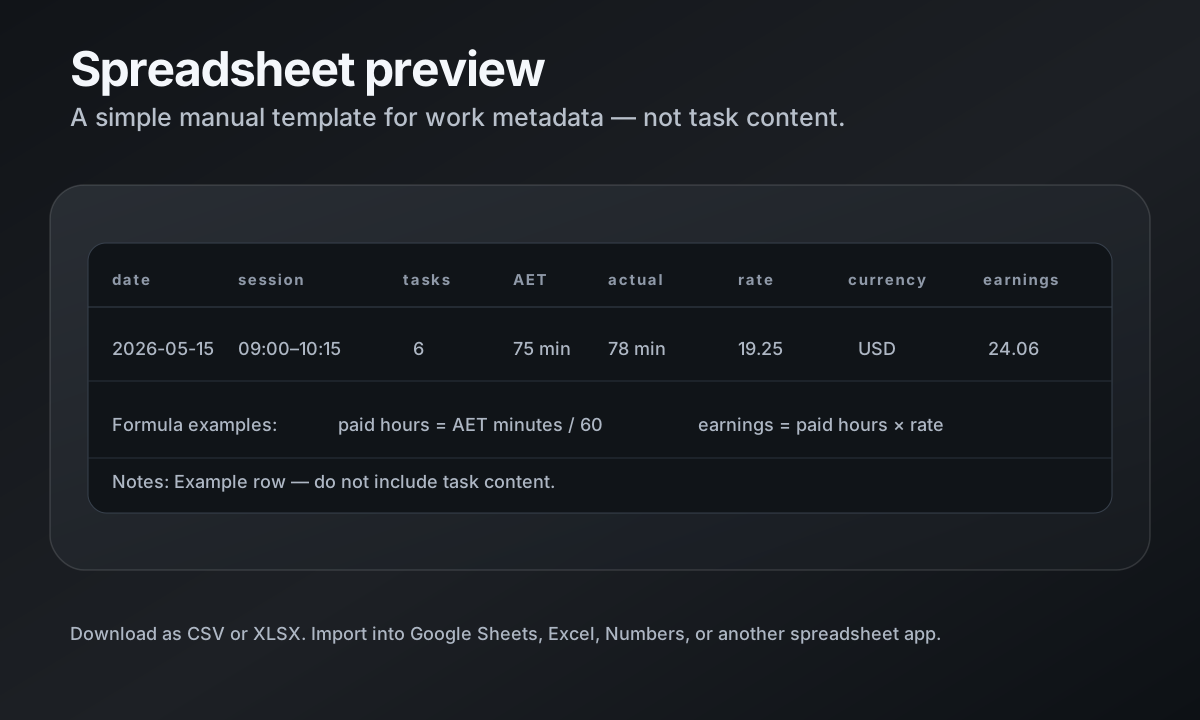
The template now ships as both CSV and XLSX. The XLSX version includes an instructions sheet and formulas for paid hours, actual hours, and estimated earnings.
paid_time_hours = aet_minutes / 60actual_time_hours = actual_minutes / 60estimated_earnings = paid_time_hours × hourly_rate
Download the free CSV template
The template includes one example row and columns for date, session start, session end, task count, AET minutes, actual minutes, paid-time hours, actual-time hours, hourly rate, currency, estimated earnings, and notes.
Use the notes field for harmless personal context only, such as “morning session” or “corrected time”. Do not store task content or account details.
Preview table and example row
A useful spreadsheet should be readable before it is fancy. Start with one row per session or one row per completed work block. If you prefer more detail, you can log one row per task, but that usually increases manual work.
Example: on 2026-05-15, a 09:00–10:15 session with 6 tasks, 75 AET minutes, 78 actual minutes, 1.25 paid hours, 1.30 actual hours, 19.25 USD/hour, and 24.06 estimated earnings.
Formulas for paid time, actual time, and earnings
If `aet_minutes` is in column E, paid-time hours can be `=E2/60`. If `actual_minutes` is in column F, actual-time hours can be `=F2/60`. If paid-time hours are in column G and hourly rate is in column I, estimated earnings can be `=G2*I2`.
Round earnings to two decimals for readability, but keep the raw time fields so you can audit your own numbers later.
Google Sheets and Excel import instructions
In Google Sheets, create a blank sheet, choose File → Import → Upload, and select the CSV. In Excel, open the CSV directly or import it through Data → From Text/CSV. Check that dates and decimals are interpreted correctly for your locale.
After import, freeze the header row and apply number formats to hours, rates, and earnings. If you use multiple currencies, add a separate exchange-rate column rather than mixing assumptions into notes.
When a spreadsheet is enough vs when an app is better
A spreadsheet is enough if you only need occasional manual totals and you trust yourself to log every session. It is also a good way to learn which fields matter before paying for any tracker.
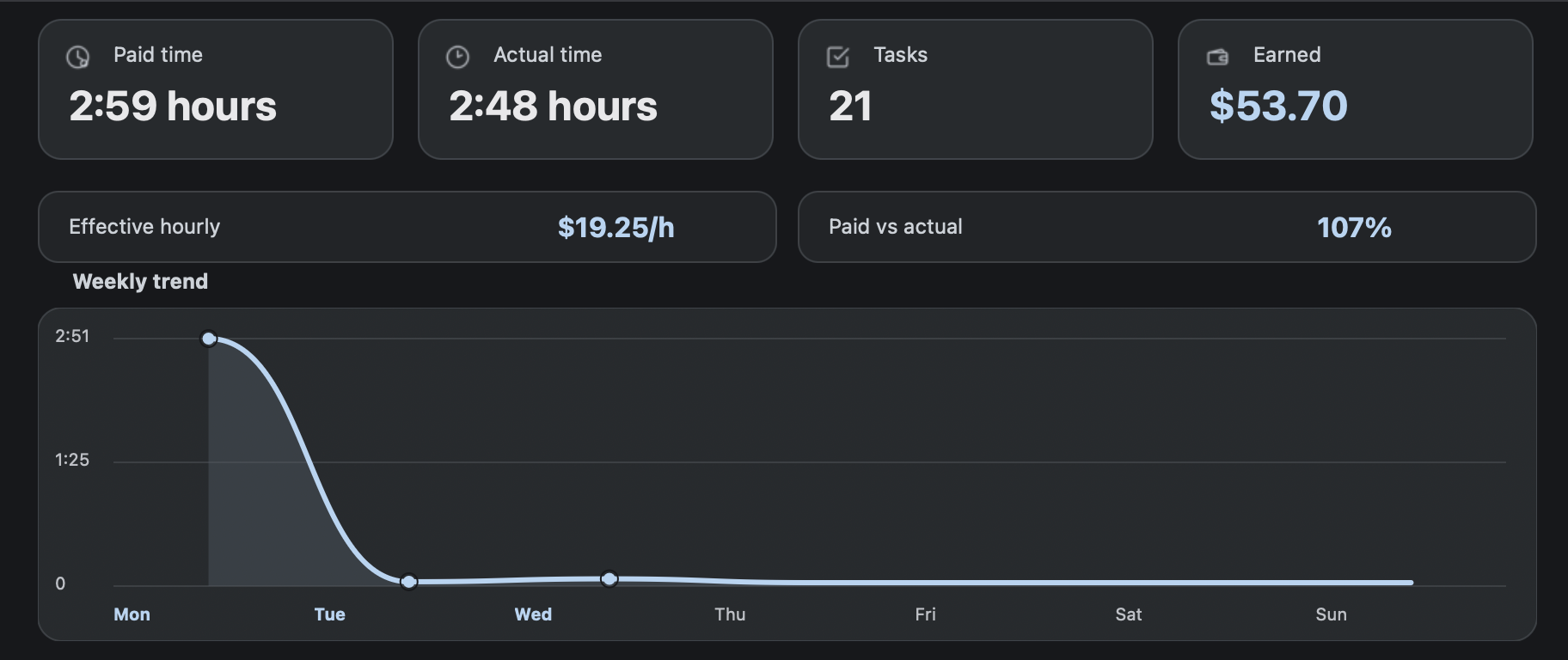
An app is better when you want a menu bar status dot, local task history, paid vs actual charts, editable records, and CSV export without keeping a spreadsheet open during work.
Comparison and decision table
| Column | Example | Purpose |
|---|---|---|
| date | 2026-05-15 | Groups work by day. |
| session_start / session_end | 09:00 / 10:15 | Shows when the work block happened. |
| task_count | 6 | Counts completed tasks or task blocks. |
| aet_minutes | 75 | Paid/estimated time in minutes. |
| actual_minutes | 78 | Real elapsed working time. |
| hourly_rate / currency | 19.25 / USD | Used for estimated earnings. |
| estimated_earnings | 24.06 | Paid hours × hourly rate. |
| notes | Morning session | Harmless personal context only. |
Template download and preview
Download the CSV template
Works with Excel, Google Sheets, Numbers, or any spreadsheet app that opens CSV files.
date,session_start,session_end,task_count,aet_minutes,actual_minutes,paid_time_hours,actual_time_hours,hourly_rate,currency,estimated_earnings,notes
2026-05-15,09:00,10:15,6,75,78,1.25,1.30,19.25,USD,24.06,"Example row - do not include task content"
Trust signals and source of truth
RH Monitor’s SEO guides are written from the product’s actual feature boundary: private Mac menu bar status, local Tracker Pro history, paid vs actual time, earnings, CSV export, and no task-content storage.
FAQ
Is the spreadsheet template free?
Yes. The CSV template is free to download and edit in your spreadsheet app.
Should I put task content in the spreadsheet?
No. Keep the spreadsheet to work metadata such as date, time, counts, paid minutes, actual minutes, and harmless notes.
How do I calculate estimated earnings?
Use paid-time hours multiplied by your hourly rate. Treat the result as an estimate, not an official pay statement.
When should I move from spreadsheet to RH Monitor?
Move when manual logging becomes easy to forget or you want menu bar status, local history, charts, editing, and CSV export.
Can RH Monitor export CSV too?
Yes. Tracker Pro exports local tracker history as CSV.