
Quick answer
There is no single best tracker for every rater. A stopwatch is simple, a spreadsheet is flexible, a browser tool is close to the work tab, and a desktop app can keep records outside the browser. RH Monitor is the Mac menu bar option for private local history.
| Fit | Use this page to decide |
|---|---|
| Best for |
|
| Not for |
|
Visual decision tools
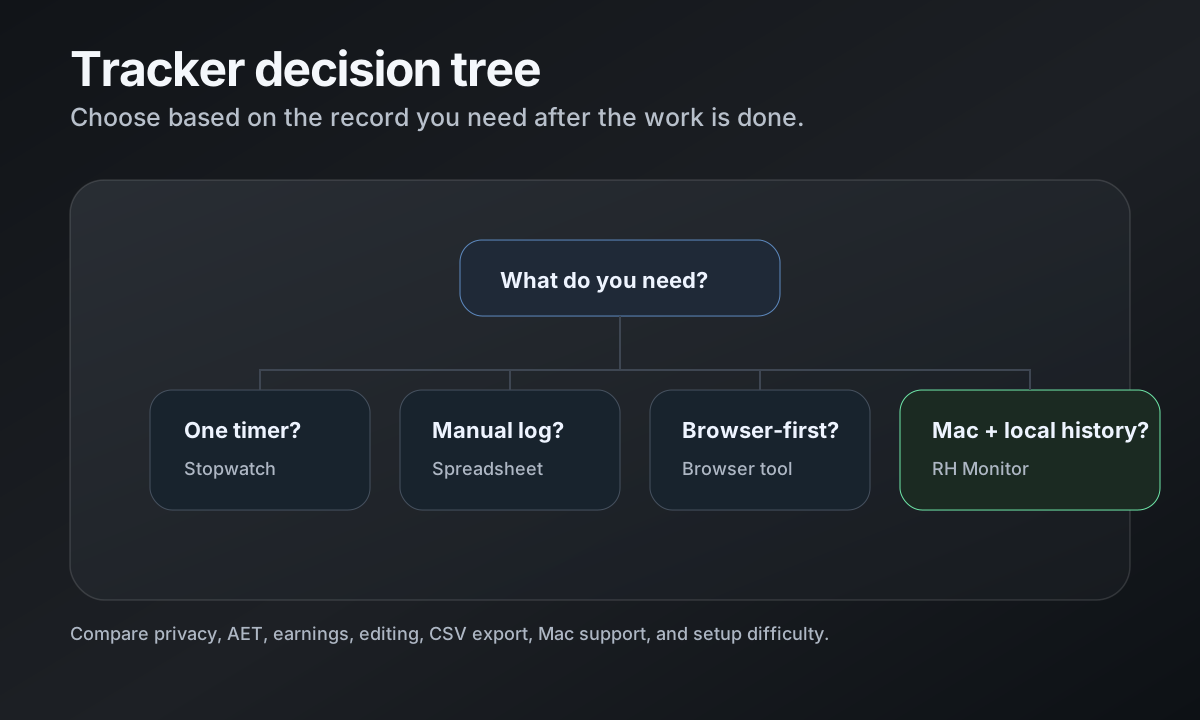
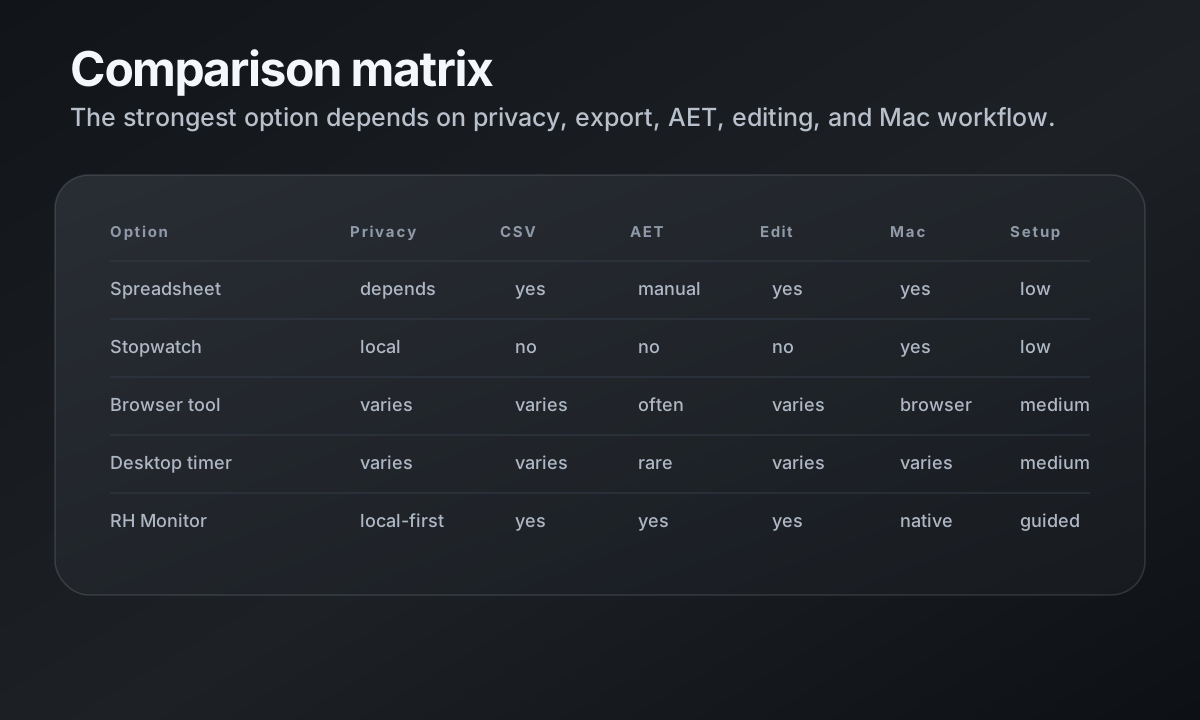
For comparison searches, the best answer is often visual. Use this decision tree and matrix to decide whether you need a stopwatch, spreadsheet, browser tool, generic desktop timer, or RH Monitor.
Spreadsheet: flexible but manual
A spreadsheet is the easiest tracker to understand. You choose the columns, formulas, and review schedule. It works well for people who like manual control and do not mind entering every session.
The weakness is consistency. If you forget to log a task or session, the sheet becomes a reconstruction exercise. Spreadsheets also do not provide a live menu bar status or local task-ready reminder.
Stopwatch: simple but incomplete
A stopwatch is useful for one question: how long has this current block taken? It is not enough for a full RaterHub-style work record because it does not know task count, paid time, AET, hourly rate, currency, or export structure.
Use a stopwatch if you only need occasional timing checks. Use something stronger if you want day/week/month history.
Browser tool: close to the task page
A browser-based timer can be convenient because it lives near the work tab. For some users, that is exactly the right surface. The tradeoff is that the timer and the work page can feel tightly coupled.
When comparing browser tools, look at permissions, storage model, export options, and whether the tool stays within your allowed work rules. Avoid any tool whose purpose is to perform task actions for you.
Desktop app: separate work page from work records
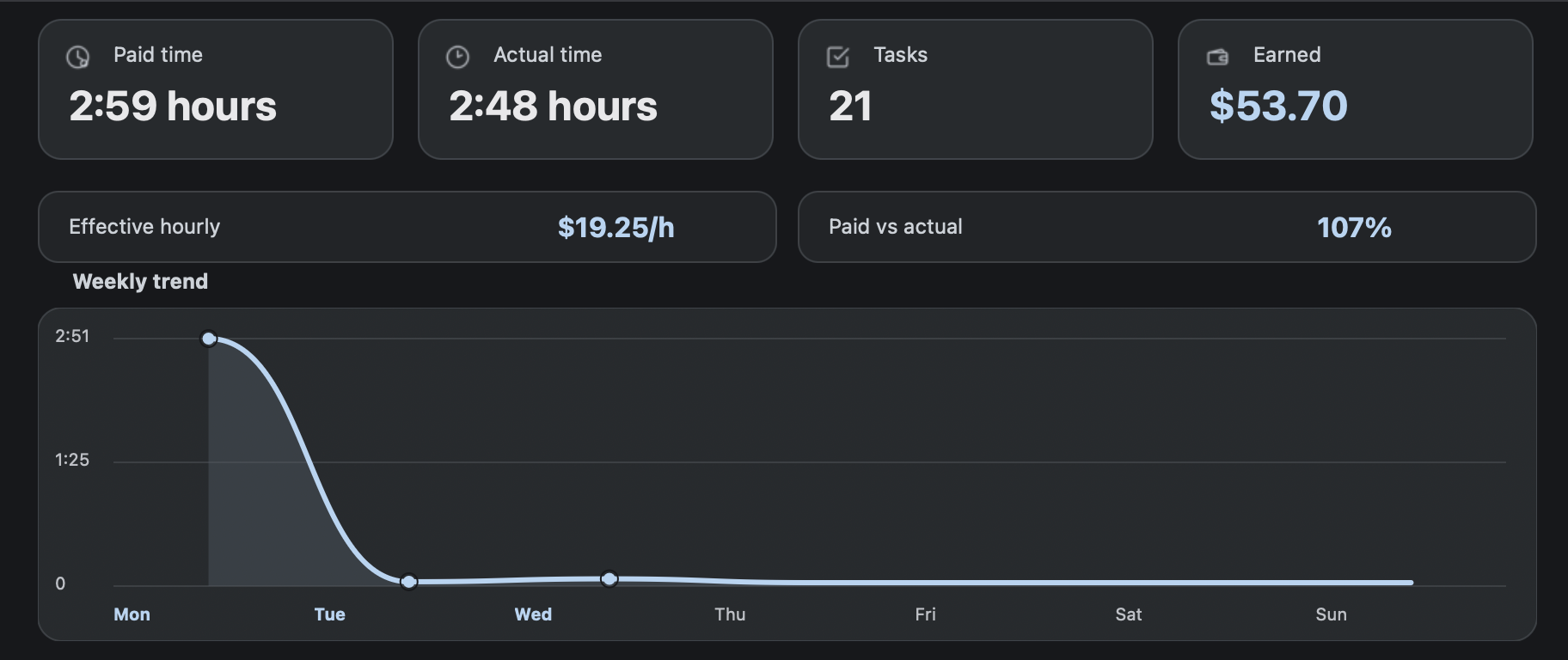
A desktop tracker can keep the work record outside the task tab. RH Monitor uses that approach on macOS: a small menu bar status signal, a local dashboard for history, and CSV export when you need a portable copy.
This separation is helpful if you want a calmer work surface. The browser remains for work; the Mac app remains for private records.
How to choose the right option
Choose based on the record you need later. If all you need is a rough total, a spreadsheet may be enough. If you want AET versus actual time, earnings, charts, local history, and CSV export, a specialized tracker saves time.
Also choose based on boundary. A good tracker should make clear what it records, what it never stores, and what it does not do to the task page.
Decision tree: which tracker should you choose?
Choose a stopwatch if you only need to time one current session and do not care about history. Choose a spreadsheet if you want a free manual log and are disciplined enough to maintain it. Choose a browser tool if you prefer the timer to live close to the work tab and you are comfortable with its permissions and storage model.
Choose a desktop tracker when you want the work page and the work record to stay separate. This is where RH Monitor fits: a Mac menu bar status dot for the live signal, and a local Tracker Pro dashboard for task count, paid time, actual time, earnings, charts, editing, and CSV export.
The more often you review your work after the fact, the more the record matters. A tracker that feels convenient during the task but gives you weak exports or unclear privacy may not be the best long-term choice. Judge the tool by both moments: the current task and the monthly review.
Privacy, export, and review matter more than feature count
Comparison pages often turn into long feature lists. A better question is whether the tracker gives you a record you can understand and trust. Can you see what was counted? Can you edit mistakes? Can you export your data? Does it avoid task content? Does it make the passive boundary obvious?
RH Monitor’s answer is to keep the tracker narrow and useful. It records work metadata, supports local history, includes CSV export in Tracker Pro, and keeps the public copy away from claims that a companion app should not make. That is the ranking and product wedge at the same time.
Comparison and decision table
| Option | Privacy | CSV/export | Earnings | AET | Edit history | Mac support | Setup difficulty |
|---|---|---|---|---|---|---|---|
| Spreadsheet | Depends where you store it. | Native export/copy. | Formula-based. | Manual. | Manual edits. | Yes. | Low. |
| Stopwatch | Local if using a local app. | Usually none. | No. | No. | No history unless copied. | Yes. | Very low. |
| Browser extension | Depends on extension storage and permissions. | Varies. | Sometimes. | Often. | Varies. | Browser-based. | Medium. |
| Generic desktop timer | Usually local. | Varies. | Rarely RaterHub-aware. | No or manual. | Varies. | Depends on app. | Low to medium. |
| RH Monitor | Local-first tracker history; no task content. | CSV in Tracker Pro. | Hourly rate + currency estimates. | Paid vs actual context. | Editable local history in Tracker Pro. | Mac menu bar app. | Guided setup. |
Trust signals and source of truth
RH Monitor’s SEO guides are written from the product’s actual feature boundary: private Mac menu bar status, local Tracker Pro history, paid vs actual time, earnings, CSV export, and no task-content storage.
FAQ
What is the best RaterHub tracker alternative for Mac?
If you want a Mac-native menu bar surface with local history, RH Monitor is built for that use case.
Is a spreadsheet enough?
A spreadsheet can be enough for disciplined manual logging. It is weaker for live status, task-ready reminders, charts, and history you do not have to rebuild.
Should I use a browser extension?
Use only tools allowed by your work rules. Compare permissions, storage, privacy, and whether the tool stays within a passive tracking boundary.
Does RH Monitor perform tasks?
No. RH Monitor does not submit tasks, complete ratings, or change task content.
Can I export from RH Monitor?
Yes. Tracker Pro includes CSV export for local work history.